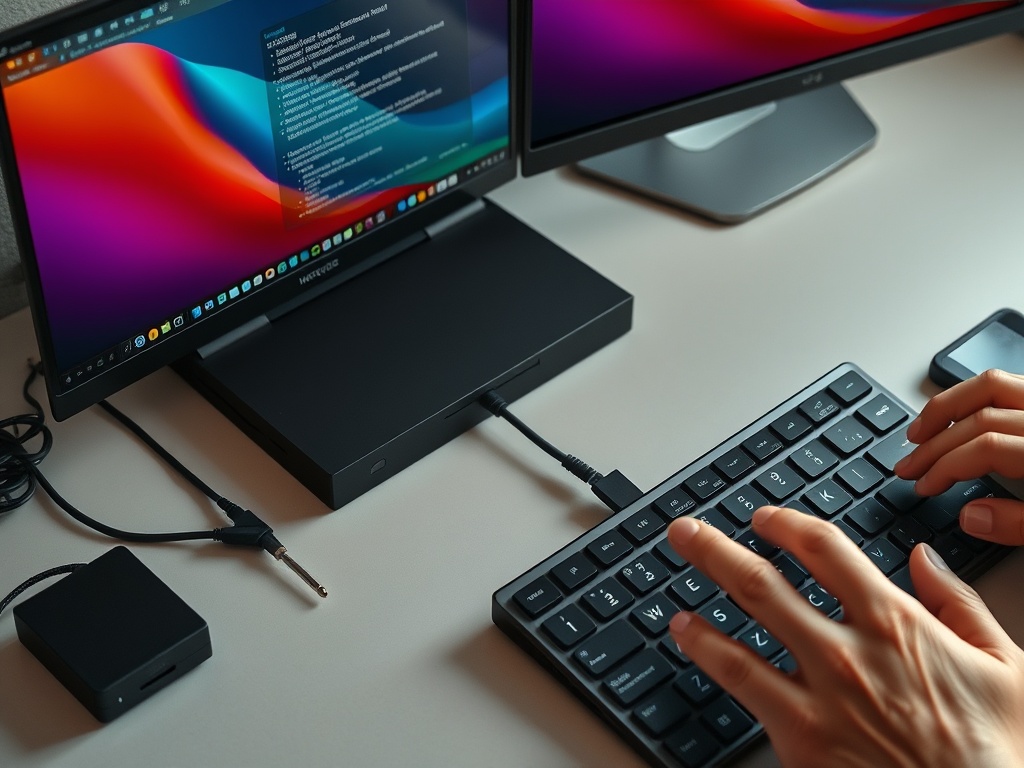

To expand ports safely, start by listing what each device needs for power, data, video, and charging, then choose a hub or dock that has enough bandwidth and power for the whole setup. The wrong adapter can add ports while quietly slowing storage, displays, or charging.
Setup snapshot: Count devices, check connector types, confirm data speeds, separate high-bandwidth devices, verify power delivery, test one device at a time, and label the final arrangement.
Map the devices before buying hardware
Port expansion looks simple because a hub or dock can turn one laptop port into many. The bottleneck appears when those ports share one upstream connection that cannot support every device at full demand. A keyboard, mouse, and headset use little bandwidth. External SSDs, cameras, capture cards, Ethernet, and multiple displays can use much more. Charging adds another layer because the dock may need enough power for both the laptop and connected devices.
Start with a device map. Write down each item you connect: monitor, storage, microphone, webcam, printer, SD card reader, Ethernet, phone, audio interface, and charging cable. Beside each item, record what matters most: speed, power, stability, or convenience. This map prevents a common mistake: buying the hub with the most holes instead of the dock that fits the workload.
The USB Implementers Forum publishes technical materials through its USB document library, which is useful for understanding why labels such as USB-C, USB4, USB 3.2, and USB Power Delivery are not interchangeable. Beginners do not need to read specifications, but they should learn that connector shape alone does not tell the whole story.
Understand the three common bottlenecks
The first bottleneck is data bandwidth. If several fast devices share one lower-speed connection, performance can drop when they run at the same time. The second bottleneck is video output. Some laptops support multiple external displays through one port, while others do not. The third bottleneck is power. A dock may claim laptop charging support, but the wattage may be too low for a high-performance laptop under load.
| Bottleneck | Warning sign | What to check |
|---|---|---|
| Data bandwidth | External drive slows during camera or backup use | USB generation, dock upstream speed, and shared controller limits |
| Video output | Monitor flickers or resolution is limited | Laptop display support, dock display specs, cable rating |
| Power delivery | Laptop drains while plugged into dock | Dock wattage, laptop charging requirement, cable rating |
| Heat and stability | Devices disconnect under load | Dock ventilation, powered hub option, firmware updates |
Choose between a hub and a dock
A small hub is best for light travel, occasional USB-A devices, card reading, or adding Ethernet to a thin laptop. A dock is better for a desk setup with monitors, power, audio, Ethernet, and storage connected most of the time. A powered hub can help with low-power peripherals, but it does not automatically solve display or high-speed storage needs. The right choice depends on the highest-demand device, not the cheapest adapter.
For a home office, the best setup may be one dock on the desk plus one simple travel adapter in the bag. Avoid chaining several cheap hubs together. Chaining can work for keyboards and mice, but it complicates troubleshooting and can create unstable connections. If your workspace also depends on display organization, connect port planning with virtual desktops best practices so the physical setup and screen workflow support each other.
Test in a controlled order
After buying a hub or dock, do not plug in everything at once and assume it works. Connect power first, then the laptop, then one monitor, then keyboard and mouse, then storage, then higher-demand devices such as webcams or audio interfaces. Test each item while doing the work that matters. Copy a large file. Join a video call. Run the display resolution you plan to use. Charge the laptop during the same test.

- Use the shortest reliable cable for high-speed devices.
- Avoid mixing critical storage and unstable low-cost adapters in the same chain.
- Keep the dock ventilated, especially under monitors or shelves.
- Update dock firmware only from the manufacturer source.
- Label cables once the setup is stable.
If a device fails only when others are connected, you likely have a shared-resource issue rather than a broken device. Move the high-demand device to another laptop port if available. If the laptop has only one port, consider a higher-quality dock designed for that use case.
Match the setup to everyday use
A student may need a hub with HDMI, USB-A, and card reader. A creator may need high-speed storage, a calibrated display, and stable audio. A remote worker may care most about webcam, Ethernet, headset, and charging. A traveler may prefer a compact hub even if it cannot support every desk feature. The best port plan respects the actual workflow.
Port expansion can also affect network habits. If your laptop connects by Ethernet at a desk but by hotspot away from it, compare the implications in mobile hotspot vs public Wi-Fi before trusting every connection equally. Hardware convenience should not remove basic network caution.
Cable quality is part of the bottleneck plan. A cable that charges a phone may not support the display resolution, data rate, or power level a dock requires. Keep the cable that shipped with the dock when possible, label high-speed cables, and avoid mixing unknown cables in mission-critical setups. If a display or drive behaves unpredictably, test with a known good cable before replacing the dock.
If a dock supports firmware updates, treat those updates carefully. Read the manufacturer's notes, update only while connected to stable power, and avoid interrupting the process. Firmware can fix stability issues, but a failed update can create new trouble. Record the version after a successful update so future troubleshooting has a reference point.
Keep receipts and model numbers for hubs, docks, and cables. If a setup fails under normal use, that information helps you request support or return the right item instead of replacing parts by guesswork.
Confirm the Bottleneck Before Buying More Ports
A bigger dock is not always the right answer. If the problem is one bad cable, one underpowered charger, or one device pulling too much bandwidth, buying more ports may hide the cause. Document your device map, test the load, and upgrade only when the evidence points to the hub or dock.
For beginners, success looks boring: one cable to the laptop, stable displays, fast enough storage, reliable charging, and no mystery adapters hanging from other adapters. That is the sign that port expansion improved the setup without creating a new bottleneck.